
English
Default Template
This site is built with the default template — what you're looking at right now is it in action.
The default template is the built-in page layout that trip2g uses when you don't specify a custom template. It provides a complete publishing setup with header, footer, sidebar navigation, table of contents, backlinks, and a magazine-style grid for displaying related notes.
You control the layout entirely through frontmatter — no HTML required.
What the default template includes
Every page rendered with the default template has these optional sections:
- Header — site logo and navigation (pulled from a markdown note)
- Left sidebar — table of contents, backlinks, or custom navigation
- Right sidebar — outgoing links, custom widgets, or empty
- Content area — your note's markdown rendered as HTML
- Magazine grid — cards showing related notes (featured, grid, or list layout)
- Footer — site footer with columns (pulled from a markdown note)
Functional notes: header, footer, and sidebars
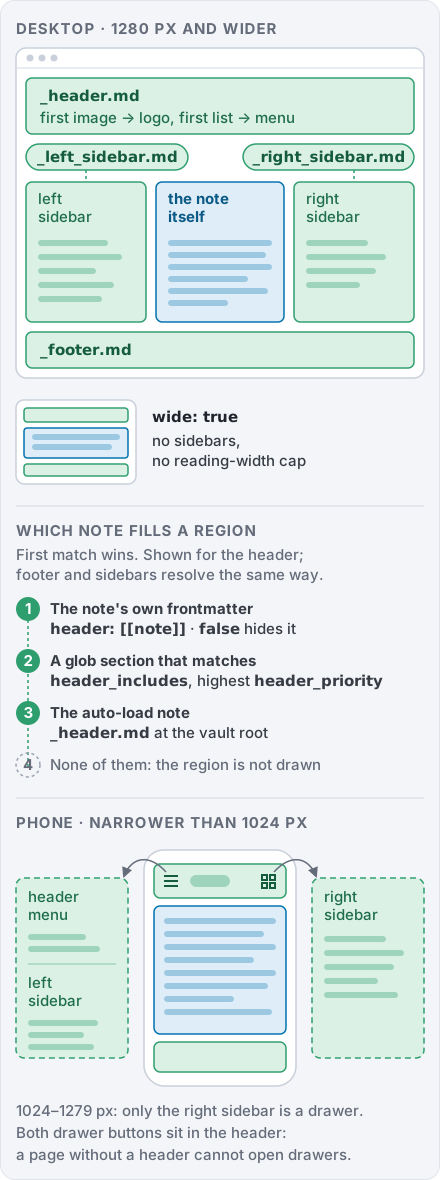
Each region shows the first note found for it: one named in the page's frontmatter, then a matching glob section, then the auto-load note such as _header.md. Sidebars have no default widgets, and a sidebar with nothing found loses its column. Below 1024 px both sidebars become drawers opened from the header.
The header, footer, and sidebars are ordinary markdown notes from your vault. You write them like any other note, and trip2g places them in the right position on each page.
Trip2g resolves which note to show in each section in this order:
- Per-note frontmatter —
header: [[my-header]]on a note wins unconditionally - Glob sections — a note declares which paths it acts as header/footer/sidebar for
- Auto-load fallback —
_header.md,_footer.md,_left_sidebar.md,_right_sidebar.md - Section absent
flowchart TD
    Start([Resolve a section]) --> A{Per-note frontmatter?<br/>header: [[my-header]]}
    A -->|set| UseA[Use that note]
    A -->|none| B{Matching glob section?<br/>header_includes: blog/*}
    B -->|matches| UseB[Use highest-priority match]
    B -->|none| C{Auto-load file exists?<br/>_header.md / _footer.md}
    C -->|yes| UseC[Use the auto-load note]
    C -->|no| None[Section absent]
Auto-load (recommended for most sites)
If your vault contains a note named _header.md, trip2g automatically uses it as the header on every page — no configuration needed in individual notes.
The same applies to:
_footer.md— footer for all pages_left_sidebar.md— left sidebar for all pages_right_sidebar.md— right sidebar for all pages
Example _header.md:

- [Home](/)
- [Docs](/docs)
- [About](/about)
No frontmatter is required. The header extracts:
- First image — becomes the site logo
- First list — becomes the navigation links
Example _left_sidebar.md:
### Getting Started

- [Quick Start](/docs/quick-start)
- [Installation](/docs/install)

### Advanced

- [Custom Templates](/docs/templates)
- [API Reference](/docs/api)
Use ### (h3) headings for group labels in sidebars, not bold text. The sidebar UI renders ### headings as proper section labels; bold text does not receive the same visual treatment.
Wide pages (wide: true)
Add wide: true to a note's frontmatter to render it full-width: the page drops both sidebars and the narrow reading column, so wide content — kanban boards, big Mermaid diagrams, large tables — uses the whole page.
---
wide: true
---
Previous/next links and breadcrumbs
The default template adds "Previous" and "Next" links under the page and a breadcrumb above it. It builds them from the sidebar navigation, so you don't have to set anything.
How it works:
- trip2g takes the sidebar notes the page shows: left sidebar first, then right. Widgets like
tocorbacklinksdon't count. - In the first sidebar note that links to the page, it lists the links to notes in document order. If the page appears twice, the first link wins.
- Previous and Next are the links just before and after the page in that list. Neighbours come from the same sidebar note only.
- The breadcrumb is the nearest heading above the link. If the heading itself contains a link to a note, the breadcrumb is a link to that note; otherwise it is plain text.
Labels are the link text from the sidebar: [[guide|Start here]] and [Start here](guide.md) both show "Start here". A wikilink without an alias, [[guide]], shows the title of guide.
Example sidebar docs/_sidebar.md:
### Basics

- [[docs/install]]
- [Configuration](config.md)

### [[docs/guide|Guide]]

- [Writing](./guide/writing.md)
- [[docs/publishing]]
On the config.md page: Previous is the title of install, Next is "Writing", the breadcrumb is "Basics" (plain text). On the writing.md page the breadcrumb "Guide" links to docs/guide.
Both wikilinks and markdown links count:
| Link | How it is found |
|---|---|
[[Note]], [[folder/Note]] |
Like any wikilink, see wikilink resolution |
[x](page.md), [x](page) |
In the sidebar note's folder first, then like a wikilink |
[x](./sub/page.md), [x](../page.md) |
Relative to the sidebar note's folder |
[x](/docs/page) |
By the page's URL, including a route: address — exactly as it opens on the site |
[x](page%20name.md) |
Encoded characters are decoded first |
Skipped: embeds (![[...]]), links to a heading ([[Note#Part]], page.md#part), external links (https://, mailto: and so on), files that are not notes (image.png), and links to notes that don't exist.
Overriding in frontmatter. prev, next and breadcrumbs replace what the sidebar gives. false hides the element:
---
prev: false
next: docs/publishing.md
breadcrumbs:
  - docs/guide.md
  - label: Changelog
    href: /changelog
  - label: Draft
---
prevandnexttake a note: a file path or a wikilink. The label is the note's title.breadcrumbstakes a list. Each item is a note (a file path or a wikilink) or a{label, href}pair.hrefis used as is; an item with onlylabelis plain text.- A note that isn't found is dropped.
Wikilinks in these fields resolve the same way as in note text, from this note: [[Note]], [[Note|alias]] and [[Note#heading]] work. See Wikilink resolution.
To turn these off for a whole folder, set prev: false, next: false and breadcrumbs: false with a frontmatter patch.
Glob sections (different headers for different site sections)
When you need different headers or sidebars for different parts of your site, add glob fields to a note's frontmatter — and it will automatically apply to the matching pages.
Add {section}_includes to any note's frontmatter to make it a glob section:
---
header_includes:
  - blog/*
  - articles/**
header_excludes:
  - blog/premium/*
header_include_property: published
header_exclude_property: draft
header_priority: 10
content: [self]
free: true
---

# Blog Header

- [[Blog Home]]
- [[Categories]]
- [[Archive]]
This file serves as the header for any note whose path matches blog/* or articles/**, unless the note is in blog/premium/*, lacks a published frontmatter key, or has a draft key.
Glob section frontmatter fields
Replace {section} with one of: header, footer, left_sidebar, right_sidebar.
| Field | Type | Required | Default | Notes |
|---|---|---|---|---|
{section}_includes |
string or array | yes (to activate) | — | Glob patterns (doublestar). A single string or a list. |
{section}_excludes |
string or array | no | none | Glob patterns to exclude. Applied after includes. |
{section}_include_property |
string | no | — | Only match notes that have this frontmatter key |
{section}_exclude_property |
string | no | — | Skip notes that have this frontmatter key |
{section}_priority |
integer | no | 0 |
Higher number wins when multiple files match |
The content field works exactly as on any note: self renders the file's own markdown body, [[Link]] embeds another note, etc.
One file, multiple roles
A single file can serve as header and footer simultaneously:
---
header_includes: "**"
footer_includes: "**"
content: [self]
free: true
---

Default header and footer for all pages.
Sidebar widgets via glob sections
A glob sidebar section can specify widgets for matched pages using the content: key. Use self to also render the section note's own body (navigation, links, etc.):
---
right_sidebar_includes: "docs/**/*.md"
content:
  - self       # render this note's body in the sidebar
  - TOC
  - inlinks
  - similar
---

Navigation links or any other content here.
When a matched page is rendered, the right sidebar will show: this note's body, then TOC, then backlinks, then similar notes.
Hiding glob sections from listings
Prefix the filename with _ to hide it from the site's magazine and note listings:
_blog-header.md     ← hidden from listings, active as glob section
blog-header.md      ← visible as a regular note AND active as glob section
Both work as glob sections. The underscore prefix only affects listing visibility.
Per-note frontmatter override
To set the header, footer, or sidebar for a specific page, reference it directly in that note's frontmatter:
---
header: [[_header]]
footer: [[_footer]]
left_sidebar:
  - TOC
  - Backlinks
right_sidebar: false
---
Hide the header: header: false
Hide the footer: footer: false
Hide the left sidebar: left_sidebar: false
Hide the right sidebar: right_sidebar: false
Available sidebar widgets:
TOC— interactive table of contents (headings from the current note)Backlinksorinlinks— notes that link to this noteoutlinks— notes that this note links tosimilar— semantically similar notes (requires vector search to be enabled)[[PageName]]— embed another note by titlepath/to/file.md— embed a note by file path
Complete example: documentation site
A site with a shared default header and a separate sidebar for the API section.
_header.md — applies to all pages (auto-load):

- [Home](/)
- [Docs](/docs)
- [Blog](/blog)
_api-sidebar.md — left sidebar only for the API section (glob section):
---
left_sidebar_includes: "docs/api/**"
left_sidebar_priority: 10
content: [self]
free: true
---

### API Reference

- [[Authentication]]
- [[Endpoints]]
- [[Rate Limits]]
docs/api/endpoints.md — a regular note, no layout frontmatter needed:
---
title: Endpoints
---

API endpoint documentation...
Result: docs/api/endpoints.md gets _header.md as its header (from auto-load) and _api-sidebar.md as its left sidebar (from the glob match). Notes outside docs/api/ get only the header.
Relationship to frontmatter patches
Both frontmatter patches and glob sections can assign headers and sidebars across many notes. The difference:
- Frontmatter patches inject frontmatter fields into notes at load time. The note ends up with
header: [[x]]as if you'd written it yourself. - Glob sections are resolved at render time from the section file's own frontmatter. Individual notes stay untouched.
For most use cases, glob sections are simpler: define the matching rules once in the section file and you're done. Frontmatter patches remain useful when you need to set other properties alongside the layout (e.g., free: true and header: together on a whole folder).
Content blocks
The content property controls which sections appear in the main content area:
---
content:
  - self
  - magazine
---
Available content blocks:
selforselfcontent— this note's article with title and bodymagazine— grid of related notes (see magazine layout section below)[[PageName]]— embed another note by titlepath/to/file.md— embed a note by file path
Default behavior:
- If you don't set
content, only the note itself is shown (self) - If the note is the site root with no index page,
magazineis shown
Title display
Trip2g determines what to show as the page title using this priority:
titlefrontmatter field — always wins if set- First H1 heading in the content — if the note starts with
# Heading, that text becomes the title and no separate title element is rendered above the content (the heading stays in place inside the body) - Filename — used as a fallback when neither of the above is set
The H1 detection means you can write natural markdown without frontmatter and the heading does double duty — it's both the visual H1 and the page title used in <title>, OpenGraph tags, and listings.
# My Article Title

Body text starts here...
This note gets the title "My Article Title" without any frontmatter. The <h1> is rendered inside the article body — no duplicate title element is added above it.
If a note has both a title frontmatter field and a leading # Heading, the frontmatter title still wins as the title value — it's what goes into <title>, OpenGraph tags, and listings. The in-content H1 is detected anyway, so the template skips its own title element. The page shows exactly one heading at the top — the in-content # Heading — and never two stacked titles, even if its text differs from the frontmatter title.
flowchart TD
    Start([Determine page title]) --> T{title frontmatter set?}
    T -->|yes| UseT[Title = frontmatter value<br/>used in title tag, OG, listings]
    T -->|no| H{Leading H1 in body?}
    H -->|yes| UseH[Title = H1 text<br/>no separate title element rendered]
    H -->|no| File[Title = filename]
    UseT --> H1check{Leading H1 also present?}
    H1check -->|yes| Skip[Template skips its own title element<br/>shows only the in-content H1]
    H1check -->|no| Render[Template renders its title element]
Magazine layout
The magazine displays related notes as cards in a three-tier visual hierarchy: featured (large, full-width), grid (medium cards), and list (minimal rows). Tune the tiers with three flat frontmatter keys, set on the page that hosts the magazine:
| Key | Default | Meaning |
|---|---|---|
magazine_featured |
1 |
How many top notes become large featured cards |
magazine_grid |
4 |
How many notes after that go into the medium grid |
magazine_grid_columns |
2 |
Number of columns in the grid |
magazine_show_date |
true |
Show the note date on each card |
The model is simple: notes are consumed in order. First magazine_featured of them become featured cards, then the next magazine_grid become grid cards, and everything left over becomes the list. There are no special "unlimited" values to remember; setting a count to 0 skips that tier.
magazine_featured: 0
magazine_grid: 0
A plain list: every note the same small size.
magazine_featured: 0
magazine_grid: 8
No hero card, 8 notes in the grid, the rest as a list.
Counts larger than the number of available notes are simply capped, with no error.
Activate the magazine on an index or category page:
---
title: Blog
content:
  - magazine
magazine_include_files: "blog/**/*.md"
magazine_sort_property: priority
---
Magazine properties
magazine_featured — How many top notes render as large featured cards
magazine_featured: 2
Default: 1. Set to 0 for no featured card.
magazine_grid — How many notes after the featured tier render in the medium grid
magazine_grid: 6
Default: 4. Set to 0 to skip the grid tier.
magazine_grid_columns — Number of columns in the grid tier
magazine_grid_columns: 3
Default: 2.
magazine_show_date — Show the note date on each card
magazine_show_date: false
Default: true, which suits a blog. Set it to false on a docs hub or catalog page, where a date carries no meaning and makes pages look stale.
magazine_include_files — Glob pattern for which notes to include
magazine_include_files: "blog/*.md"          # All posts in blog/
magazine_include_files: "posts/**/*.md"      # Recursively all .md in posts/
magazine_include_files: "docs/**/README.md"  # All README.md files
Default: **/*.md (all notes)
magazine_exclude_files — Glob pattern for which notes to exclude from the magazine
magazine_exclude_files: "**/*Telegram.md"   # Exclude Telegram versions by name
magazine_exclude_files: "drafts/**"         # Exclude drafts folder
magazine_exclude_files: "archive/*.md"      # Exclude archived posts
Applied after magazine_include_files. Not set by default — no notes are excluded.
magazine_exclude_property — Exclude notes that have a specific frontmatter field
magazine_exclude_property: telegram_publish_at
Notes with this field are hidden from the magazine. Useful when Telegram versions of notes live alongside web versions in the same folder.
magazine_sort_property — Sort cards by a custom frontmatter field
magazine_sort_property: priority
Notes that have this field are listed first (sorted by value descending), then the rest sorted by creation date descending.
Example:
---
title: Featured Post
priority: 100
---
magazine_include_property — Only show notes with a specific frontmatter field
magazine_include_property: featured
Only notes with featured: true (or any truthy value) in their frontmatter will appear.
Excluding Telegram notes from the magazine
When you publish to both web and Telegram, the Telegram versions often sit in the same folder. Two ways to exclude them:
By filename pattern — if Telegram notes follow a naming convention (e.g. My Post. Telegram.md):
---
title: Daily Reports
content:
  - magazine
magazine_include_files: "reports/**/*.md"
magazine_exclude_files: "**/*Telegram.md"
---
By frontmatter property — if Telegram notes have telegram_publish_at in frontmatter:
---
title: Daily Reports
content:
  - magazine
magazine_include_files: "reports/**/*.md"
magazine_exclude_property: telegram_publish_at
---
Both approaches can be combined.
Magazine cards
Each magazine card shows:
- Title — from frontmatter, styled as a link
- Excerpt — the note's
descriptionfrontmatter field. Without it, the first paragraph of the note as plain text: links, bold and inline code become ordinary text; lists, code blocks, tables and images are skipped. The excerpt is cut to 3 lines (4 on a featured card, 2 in the list) - Date — the note's creation date, unless
magazine_show_date: false
The whole card is clickable and leads to the note. To control what a card says, write a one-sentence description in the note's frontmatter.
Examples
Landing page with magazine grid
---
title: Home
content:
  - self
  - magazine
magazine_include_files: "**/*.md"
magazine_sort_property: featured_on_home
left_sidebar: false
right_sidebar: false
---

# Welcome

Explore our latest content below.
Mark notes to feature on the homepage:
---
title: Important Topic
featured_on_home: true
---
Documentation site
---
title: Documentation
content:
  - self
left_sidebar:
  - _sidebar.md
right_sidebar:
  - TOC
  - outlinks
---
Blog with featured section
---
title: Blog
content:
  - magazine
magazine_include_files: "blog/**/*.md"
magazine_sort_property: featured
---
Blog posts:
---
title: Latest News
featured: 50
description: Summary of recent updates
---
Flexibility through frontmatter patches
Manually adding header, footer, left_sidebar, and lang to every note doesn't scale. Frontmatter patches let you set those properties once for an entire folder.
For example, this documentation site is configured like this:
# All pages are public
**/*.md → {free: true}

# Russian sidebar for the entire RU section
ru/user/**/*.md → {left_sidebar: "ru/user/_sidebar.md"}

# Russian header and footer
ru/**/*.md → {header: "[[ru/_header]]", footer: "[[ru/_footer]]"}
No individual note knows about the template — everything is injected from outside via patches.
Switching to a custom template
If you need more control than frontmatter provides, create a custom template. See templates for the full template system.
---
layout: my-custom-template
title: My Page
---
Any note can use either the default template (by omitting layout) or a custom one.
Telegram post links
If a note has been published to a Telegram channel, the template shows a blue "Read in Telegram" button above the title. Clicking it opens the Telegram post directly.
The button appears automatically in three cases.
1. Published via trip2g
When you publish a note to Telegram through trip2g's publishing system, the button appears automatically. If the note was published to multiple channels, each channel gets its own button with the channel name.
No frontmatter needed — trip2g tracks sent messages in the database.
2. Imported from Telegram
Notes imported from a Telegram channel already have the link in frontmatter:
---
telegram_publish_channel_id: "1234567890"
telegram_publish_message_id: 42
telegram_publish_message_link: https://t.me/c/1234567890/42
---
The telegram_publish_message_link field is set automatically during import. The button uses this URL directly.
For public channels the link format is https://t.me/channelname/42 — in this case the button shows the channel name: "Read on @channelname".
3. Alternatives (cross-linking to Telegram version)
If you have a web version and a separate Telegram version of the same content, use the alternatives frontmatter field:
---
title: My Article
alternatives:
  - "[[My Article. Telegram]]"
---
The linked note (My Article. Telegram) must either have telegram_publish_message_link in its frontmatter or be published via trip2g's publishing system. The template resolves the wikilink, extracts the Telegram link, and shows the button on the parent page.
This is useful when you publish a shorter or differently formatted version to Telegram and want to link between the two.
Priority
The template checks sources in this order:
- Database (published via trip2g) — checked first, supports multiple channels
- Frontmatter
telegram_publish_message_link— fallback for imported notes - Alternatives — resolved from linked notes