
English
Kanban board template
The Kanban template renders any obsidian-kanban note as a live, draggable Trello-style board on your published site — readers see it, you edit it from both the website and Obsidian.
This is a separate, optional template, not part of trip2g core. The source is at github.com/trip2g/kanban_template.
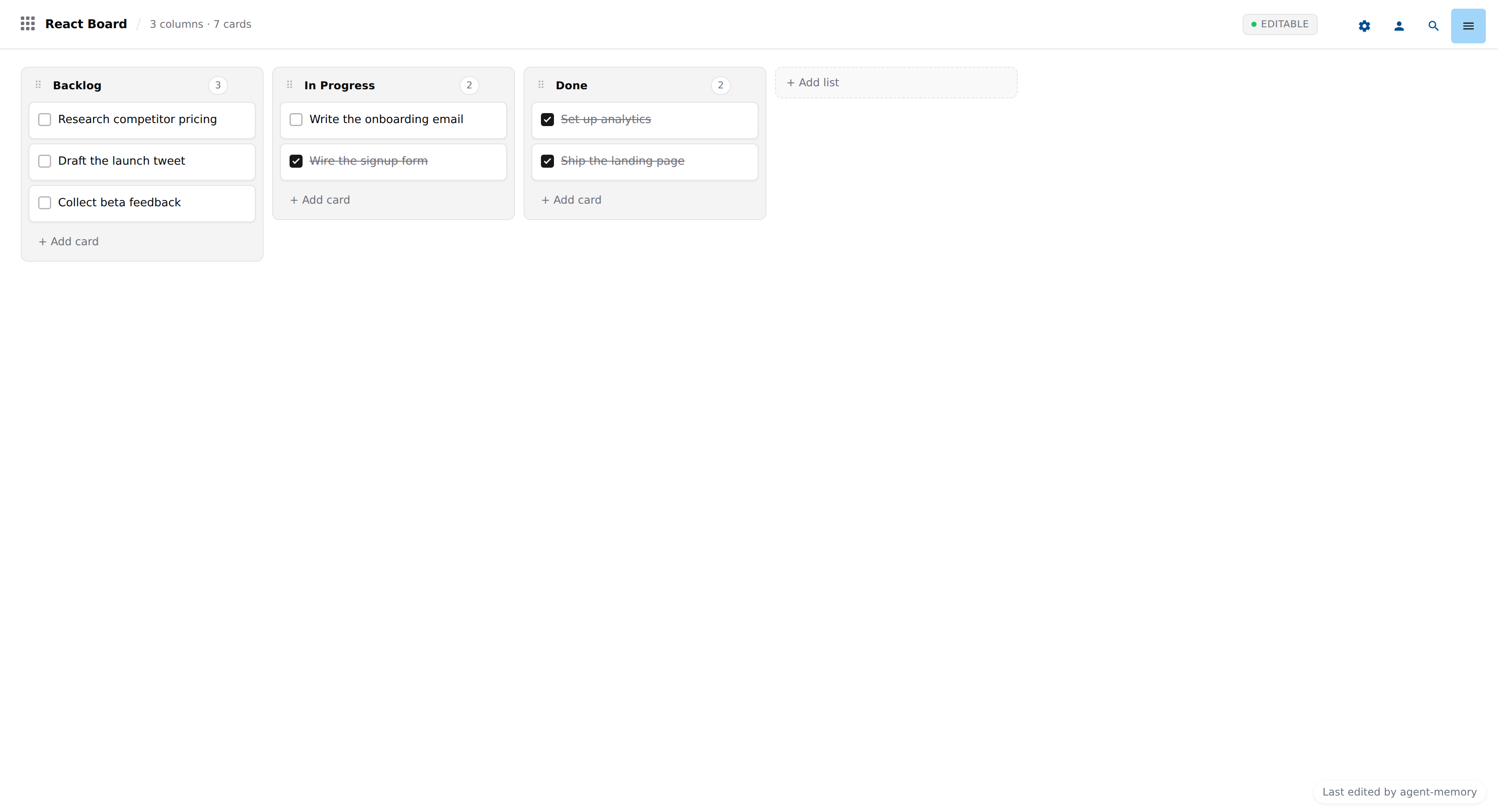
▶ Open the live demo board — read-only for visitors, fully editable for the site owner.
Install
Run these two commands in your vault root:
mkdir -p _layouts
curl -L -o _layouts/kanban.html \
  https://github.com/trip2g/kanban_template/releases/latest/download/kanban.html
Then sync your vault. trip2g uploads _layouts/*.html automatically, so the template becomes available on your site after the next sync.
Activate on a note
Add layout: kanban to any obsidian-kanban note's frontmatter, alongside the kanban-plugin line the plugin already adds:
---
kanban-plugin: basic
layout: kanban
---
The board appears on the published page at that note's URL. The JS bundle loads from the GitHub release — nothing else to upload or configure.
The plugin & the board format
The board is produced by obsidian-kanban, an open-source Obsidian plugin by mgmeyers. But the board itself is a plain markdown note — anything that can write markdown, including an AI agent, can create or modify a board without the plugin or Obsidian installed.
What makes a note a board. The trip2g trigger is layout: kanban — that key tells trip2g to render the note with this board template. Without it, the note is just plain markdown on your site (a checklist), no board. The other key, kanban-plugin: basic, is the obsidian-kanban plugin's own marker — the data format the template reads, and what makes Obsidian draw the board. It isn't a trip2g thing and the template doesn't strictly require it; you simply already have it if you built the board in Obsidian, so keep it and add layout: kanban next to it:
---
kanban-plugin: basic
layout: kanban
---
Columns. Each ## Heading in the note body is a column. Columns appear left to right in the order they appear top to bottom in the file.
Cards. Each - [ ] text line under a heading is an open card. Each - [x] text line is a done card. The checkbox tracks the card's done state.
Card text is a single line and may contain inline markdown: **bold**, *italic*, `code`, [[wikilinks]], and standard links.
Done lane. A **Complete** line placed immediately under a lane heading marks that lane as the "done" lane. Cards dragged into it are automatically checked.
Settings block. A trailing %% kanban:settings … %% fenced block holds the plugin's view settings (lane widths, etc.). Obsidian manages this block; an agent can leave it untouched or omit it entirely. trip2g preserves it byte-for-byte on every save.
Here is a complete, copy-pasteable board:
---
kanban-plugin: basic
layout: kanban
---

## Backlog

- [ ] Research the competitor pricing page
- [ ] Draft the launch tweet

## In Progress

- [ ] Write the onboarding email

## Done

**Complete**

- [x] Set up the analytics dashboard
To add or move a card, edit the - [ ] lines and the heading they sit under. No plugin API, no Obsidian.
What works
Cards — drag within a column, drag between columns. Double-click a card to edit its text. Click the delete icon to remove a card. Check a checkbox inside a card to toggle it.
Columns — add a new card to any column with the + button at the column bottom.
Inline markdown — cards render **bold**, `code`, and [[wikilinks]]. Clicking a wikilink opens the linked note; Ctrl/Cmd or middle-click opens it in a new tab.
Round-trip safe — edits made on the site write back to the exact same markdown that Obsidian produces. Content the board doesn't model — such as the kanban settings block and the archive — is preserved on every save.
Concurrent edits — if someone else (or Obsidian sync) changes the note while you have the board open, the board reloads automatically rather than overwriting the remote version.
Driving agents with a board
Because a board is a markdown note, it doubles as a shared task list for you and your AI agents. Columns are stages — Backlog, In Progress, Done — and cards are individual tasks. You and your agents edit the same file; trip2g keeps the two sides in sync.
The connection point is a change webhook. Set one up in the admin panel (Webhooks → + Add): enter your agent's URL and set the board note's path as the watch pattern — for example kanban/sprint.md. When the board changes (a card moved on the site, a card edited, or an update synced from Obsidian), trip2g sends your agent a POST containing the board's current markdown in the changes[].content field.
Your agent reads that markdown using the format described above — no Obsidian needed. It identifies which cards are in "In Progress", does the work, and writes results back in one of two ways:
- Synchronous response — return the updated markdown in the webhook response body. trip2g applies it immediately. Use this for fast operations (under 60 s).
- API token — enable Pass API key on the webhook. trip2g includes a short-lived token in the payload (
api_token). Your agent uses it to edit the note independently — for example, moving a card to Done or appending a result line — after the response window closes. Use this for longer tasks.
The depth field in the payload tracks chain depth. With the default max_depth: 1, your agent's own edit to the board does not re-trigger the webhook, preventing loops. Raise it to max_depth: 2 only if you intentionally chain agents.
The result: you drag a card to In Progress, the agent picks it up and moves it to Done when finished — both editing one markdown file, no extra infrastructure required.
See webhooks for the full payload format, signature verification, and async patterns.
Access levels
Editing on the site requires being signed in as the site owner or admin. Visitors see a read-only board — columns, cards, and wikilink previews work, but nothing can be moved or changed.
Customizing the bundle
The template is a single self-contained HTML file built with React and @dnd-kit. To change colors, behavior, or card rendering, fork the repository and rebuild the bundle. See the README for build instructions.
Related
- Custom templates — how
_layouts/files work in trip2g - An app on top of trip2g — the pattern this template follows, for building your own
- Publishing notes — frontmatter basics
- Webhooks — change webhooks, cron webhooks, and MCP server