
English
In-browser file editor
Fix a typo, reword a paragraph, or roll back to yesterday's version — without opening Obsidian.
The editor is available to admins only. Readers never see it.
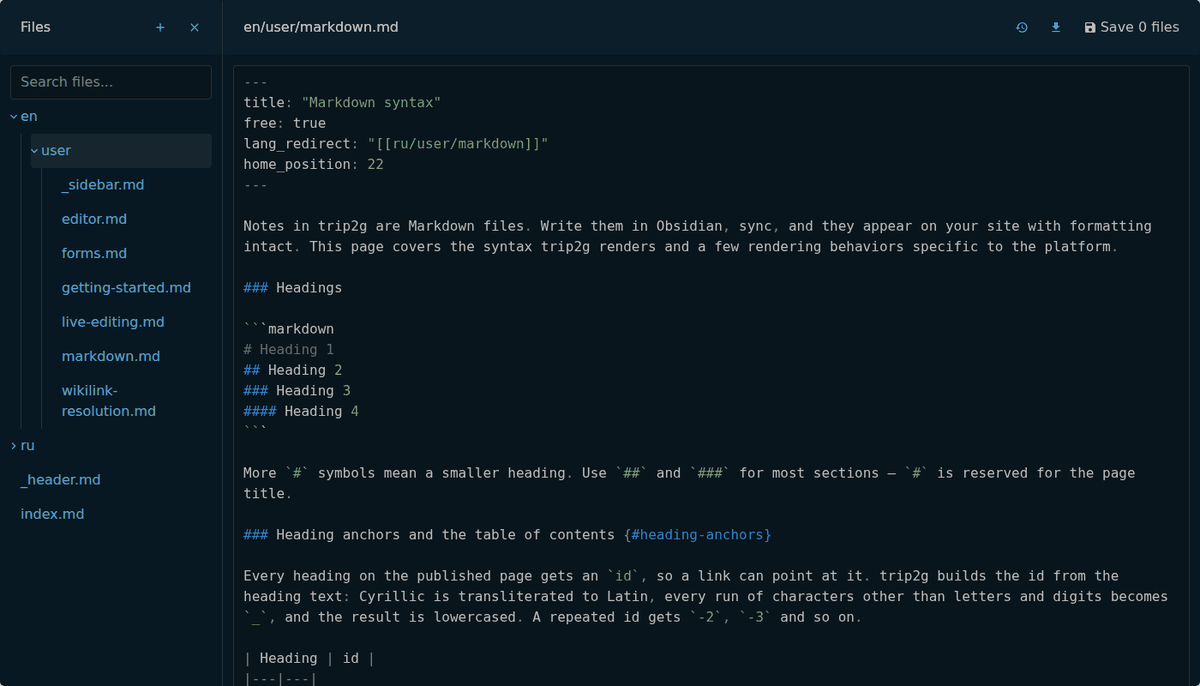
The editor open on a note. Left: the folder tree. Center: the note's markdown. Top right: the version history icon, file download, and Save.
How to open the editor
The editor icon appears in two places:
- On the admin panel Dashboard — top right.
- In the ☰ menu in every page header — the Edit this page item. Only admins see it.
The note for the page you were just viewing opens automatically.
Browse and switch files
The left side of the editor shows a folder tree of everything in your vault. Click any file to load it into the editor. The tree reflects the same folder structure you see in Obsidian.
Edit and save
Type directly in the editor. Your changes stay in the browser — nothing is written to the server until you press Save. If you close the editor or navigate away before saving, the edits are lost.
After you save, the page reflects the new content immediately. Readers who have turned on Live reload see the change right away: their page reloads by itself.
Note: if you edit a file in the browser and then sync the same note from Obsidian, the Obsidian version overwrites the browser edit. The rule is: the last sync wins.
Versions panel
Every time you save, trip2g stores a version of the file.
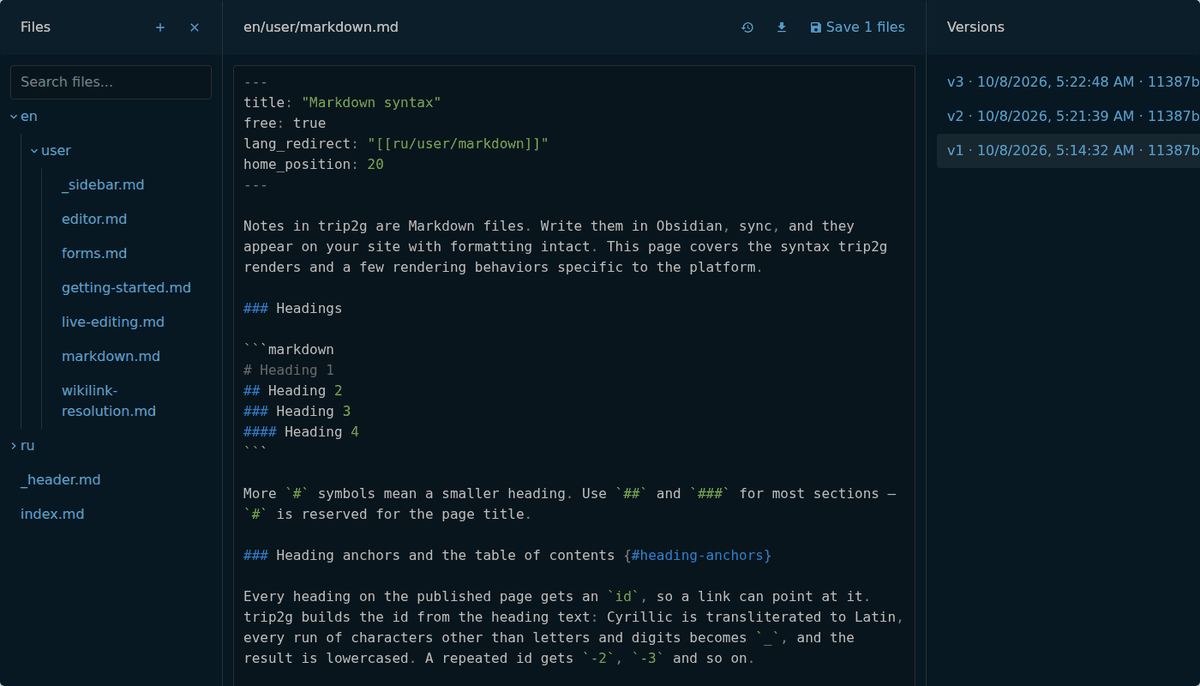
The Versions panel on the right lists past versions with dates. The selected one is already loaded into the editor; press Save to keep it.
To go back to an earlier state:
- Open the editor on the file you want to restore.
- Click the history (clock) icon next to Save, top right. The Versions panel opens.
- Click a version in the list — its content loads into the editor.
- Click Save to make it the current version, or close the panel to discard.
Ctrl+Click to follow a wikilink
In the editor, hover over any [[wikilink]] — the cursor changes to a pointer. Hold Ctrl (or Cmd on macOS) and click to open the linked note directly in the editor.
This lets you jump through connected notes the same way you would in Obsidian.
Where the editor icon sits
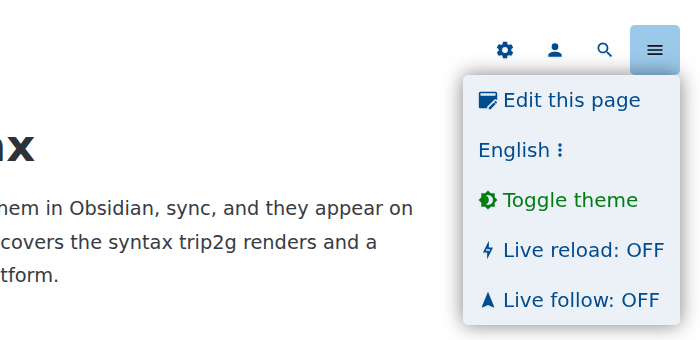
The header of a published page with the ☰ menu open. The first item, Edit this page, opens the editor.
Related
- Live editing — with "Live reload" on, the page in the browser reloads by itself after you save
- en/user/publishing — frontmatter properties that control visibility and slugs
- en/user/two-way-sync — how edits made here relate to Obsidian sync