
English
The onboarding vault
The onboarding vault is a ready-to-use Obsidian vault you download from your trip2g instance. The sync plugin is already installed and wired to your instance — your site URL and a fresh API key are baked into its settings. Unzip it, open it in Obsidian, press Sync, and your notes go live. Nothing to install, nothing to configure.
This page explains what is inside the archive, how to sync it without opening Obsidian, and how to keep the API key inside it safe.
Where you get it
A fresh instance greets the admin with a welcome page and a Download archive button. Each download creates a new API key and bakes it into the archive.
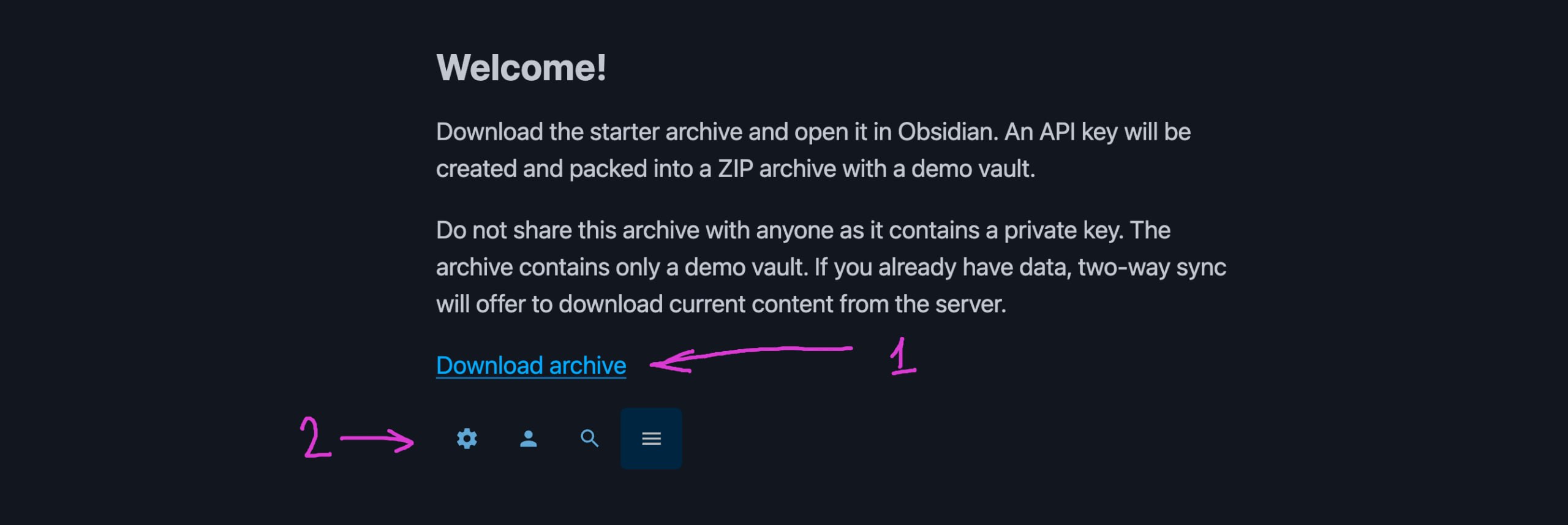
- Download archive — the download link. You only see it when you are logged in as the admin.
- Gear icon — the admin panel. The gear appears in the top bar once you are signed in as admin; if you do not see it, you are not authenticated.
See Getting started for the full first-sync walkthrough.
What is inside the archive
The archive is a normal Obsidian vault plus a few pre-filled config files:
| Path | What it is |
|---|---|
_index.md |
The home page of your site. Edit it and sync to change the front page. |
.obsidian/plugins/trip2g/ |
The sync plugin and its tools (see below). |
.mcp.json, codex.json |
MCP server configs for AI agents (Claude Code, Codex), pre-filled with your instance URL and key. |
antigravity-mcp-config.json |
MCP config for Antigravity — copy it to ~/.gemini/antigravity/mcp_config.json. |
AGENTS.md |
Instructions an AI agent reads to search and publish your notes. |
_layouts/ |
Example feature templates that ship in the vault: rss.html (RSS feed), and others used by kanban and the theme editor. These are editable — open any file in Obsidian, change it, sync. See en/user/rss for a worked example. |
The MCP configs and AGENTS.md let an AI agent search your published notes and, when enabled, manage the site. See en/user/agent-memory.
Inside the plugin folder
.obsidian/plugins/trip2g/ holds the sync plugin and two files worth knowing:
trip2g-sync.mjs— a standalone Node script that syncs the vault from a terminal, without opening Obsidian.data.json— the plugin's settings, including your API key. Treat it like a password (see the warning below).
Sync without opening Obsidian
trip2g-sync.mjs runs the same sync as the plugin button, from the command line. Use it for automation, headless servers, or a CI/CD pipeline.
Run it from the vault root:
node .obsidian/plugins/trip2g/trip2g-sync.mjs --folder .
--folder is the folder to sync; . means the whole vault. The script reads apiUrl and apiKey from .obsidian/plugins/trip2g/data.json automatically, so you do not pass --api-key or --api-url when you run it inside the downloaded vault.
Two flags cover most cases:
# Preview what would change, make no changes
node .obsidian/plugins/trip2g/trip2g-sync.mjs --folder . --dry-run

# Two-way sync: also pull server changes into the vault
node .obsidian/plugins/trip2g/trip2g-sync.mjs --folder . --two-way
In CI, supply credentials through environment variables instead of data.json:
export TRIP2G_API_KEY=your_api_key
export TRIP2G_ENDPOINT=https://yoursite.com/_system/graphql
node trip2g-sync.mjs --folder ./docs
Run the script with --help to see all flags. For a full CI/CD walkthrough — GitHub Actions, multi-repo --meta, conflict modes — see CLI sync tool.
Guard the API key in data.json
Warning:
data.jsoncontains a live API key with full write access to your vault. Anyone who has this file can overwrite or replace all your published content. Treat it like a password.
Concretely:
- Do not commit
data.jsonto a public repository. - Do not share the downloaded archive publicly — it carries the key.
- Do not paste
data.jsonor its contents into chats, issues, or pastebins. - In CI/CD, put the key in a CI secret and pass it via
TRIP2G_API_KEY. Do not commitdata.json.
If a key leaks, revoke it in the admin panel under API Keys and download a fresh archive.
Next steps
- Getting started — first sign-in and first sync
- en/user/publishing — control how notes appear with frontmatter
- CLI sync tool — full command-line and CI/CD reference
- en/user/agent-memory — connect an AI agent to your notes via MCP
- Backups — protect your content